
When lodging a tax return electronically through Lodgeit, a separate signature box or manual signing step is not required. Lodgeit automatically applies the required electronic signature as part of the electronic lodgement process.
How the Electronic Signature Works
When you lodge a return electronically using Lodgeit:
- There is no manual signature field to complete.
- The agent's or public officer's electronic signature is automatically applied during lodgement.
- This process complies with the Australian Taxation Office (ATO) requirements for electronic lodgements.
The absence of a manual signature box is intentional and is designed to streamline the lodgement process while ensuring compliance with the applicable legal and electronic lodgement requirements.
For Registered Tax Agents
If you are a registered tax agent, your electronic signature is applied automatically when you submit the return through Lodgeit. You do not need to print, sign, or manually add your signature before lodging electronically.
This aligns with the ATO guidance regarding myGovID as proof of an agent's identity and authority for electronic lodgements.
For Public Officers
If you are lodging a company tax return as the Public Officer, you are authorised to lodge the return on behalf of the company.
By selecting Sign and Lodge, you confirm that:
- You are authorised to submit the return on behalf of the entity.
- The information provided in the return is true and correct to the best of your knowledge.
The electronic signature is automatically applied during submission, so no additional signature box is required.
Why There Is No Signature Box
Lodgeit is designed to electronically transmit tax returns directly to the ATO. As part of this process, the required electronic signature is automatically attached during lodgement.
This means:
- No handwritten signature is required.
- No separate electronic signature field is required.
- The electronic signature is embedded as part of the secure lodgement process.
TABLE OF CONTENTS
- Uploading or changing your own signature
- Adding a signature for a practice with single owner
- Adding a signature for a practice with multiple owners
- Adding a signature manually
- Tax Agent Signature via Tax Return
- Compilation Report Signature
Uploading or changing your own signature
To upload your signature:
- In the upper-right corner of any page, click Profile, then click Account.
- Under Signature section click Choose Signature File.
- Select a prepared signature image from your device.
To change your signature, please follow steps below:
- In the upper-right corner of any page, click Profile, then click Account.
- Under Signature section click Delete Signature.
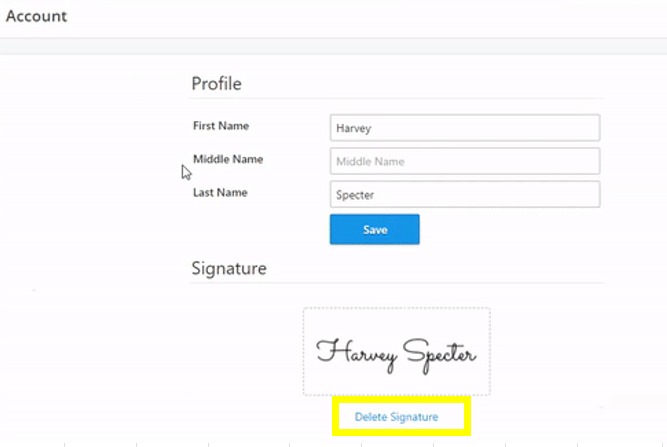
- Click Choose Signature File.
- Select a prepared signature image from your device.
Adding a signature for a practice with single owner
If you have only one owner who signs all your financial statements, you can set the owner as a default signatory for your firm.
Signature of the selected person will be automatically added to all newly created financial statements.
To set a default signatory:
- In the upper-right corner of any page, click Gear, then click Settings.
- Open Practice settings.
- Type a name and select the default signatory from the search list.
- Click Save.
Adding a signature for a practice with multiple owners
Currently Lodgeit doesn't support automatic signature insertion into financial statements for practices with multiple owners. You can insert a signature manually on behalf of an owner.
Adding a signature manually
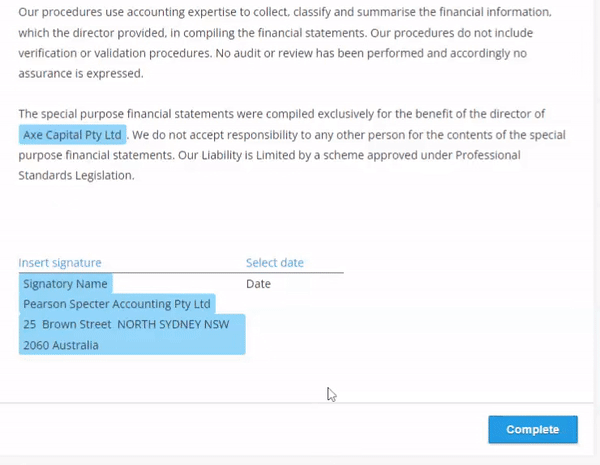
You can insert a signature manually for each financial statement. Lodgeit allows to insert a signature by a preparer on behalf of an owner.
To insert a signature:
- Create new financial statements from a template.
- Open Compilation Report, scroll to the bottom and click Insert Signature on a signature component.
- Select a colleague who signature you are going to insert.
- Click Sign.
- Select a signature date if you need to modify it.
Tax Agent Signature via Tax Return
Simply enable this option when sending for e-signature or when printing the tax return.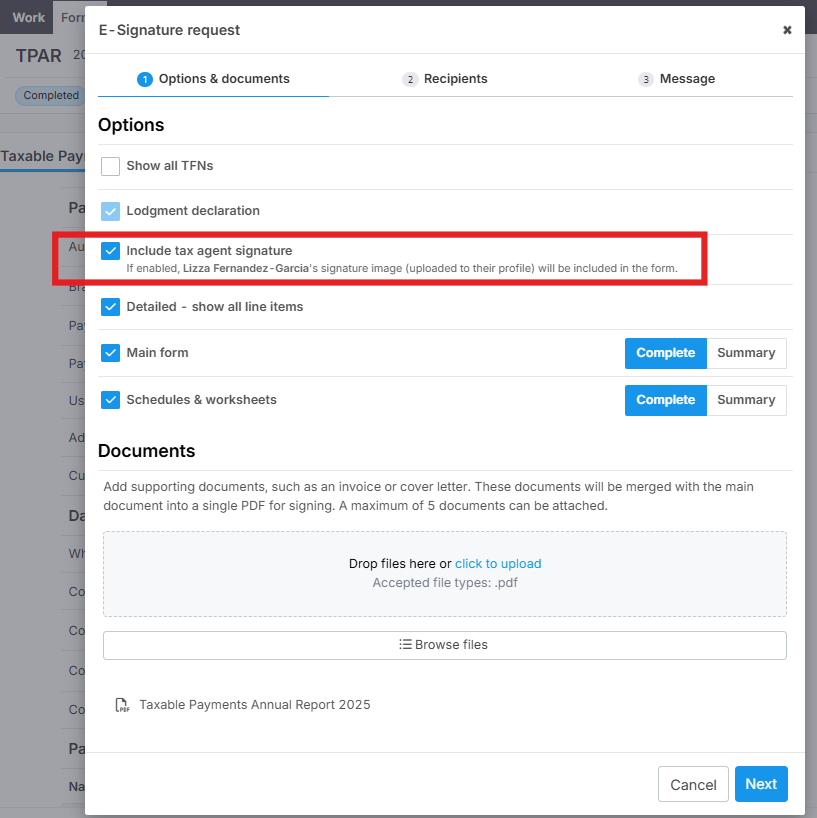
Compilation Report Signature
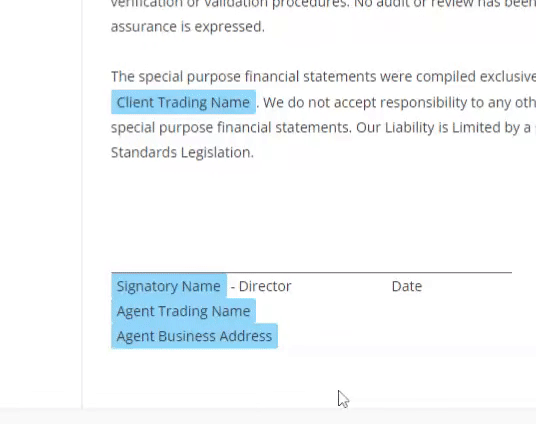
You can modify text under the signature to align with your practice requirements. You can use placeholders, to allow Lodgeit automatically insert your practice name, address and other details, as well as add any additional text you need.
To modify a default signature text:
- Create your own custom template from a predefined financial report template.
- Open Compilation Report, scroll to the bottom and click on the text.
- Remove the predefined text and write your own.
- Use '@' to insert a placeholder.
- Repeat it for each entity type.
Related guide: