A. Client Export (CSV or Excel file):
Note, only the team that has "Owner and Admin" access can export the tax form list.
The steps on how to Export Client details:
1. Top right of Lodgeit interface, click "Clients"

2. Press the 3 dots, choose from the option "Export to CSV" or Export to Excel"

3. Select "Gear wheel icon" > Team is activated. Learn more


See attached excel file to see the line items that can be exported from Lodgeit Client list
Related Article:
How to Export Client to QuickBooks
B. Client Import (CSV file):
1. Edit the exported CSV file first.
1.1 Delete the "System ID" code.
1.2 "Code" column is the "client code" of the client. If you wanted an auto-generated client code during the import process, then delete this 2nd column field.

Below is the sample combination of alphanumeric code for the client code:

2. Ensure to save to save the file as a CSV file (.csv):
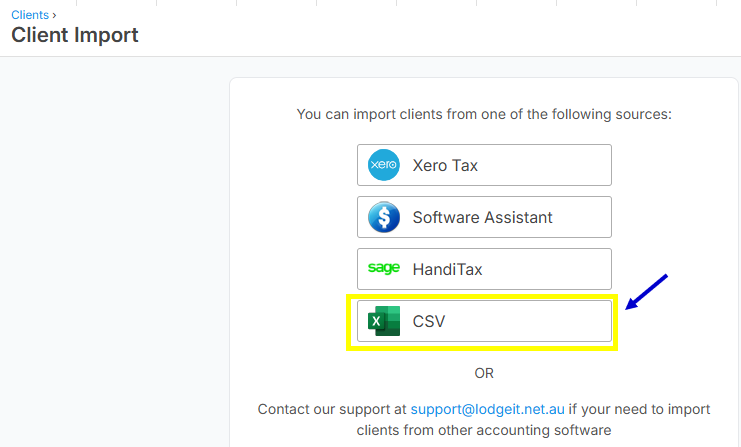
 3. To import the file, go to "Clients > Import".

4. Click the"CSV" option.
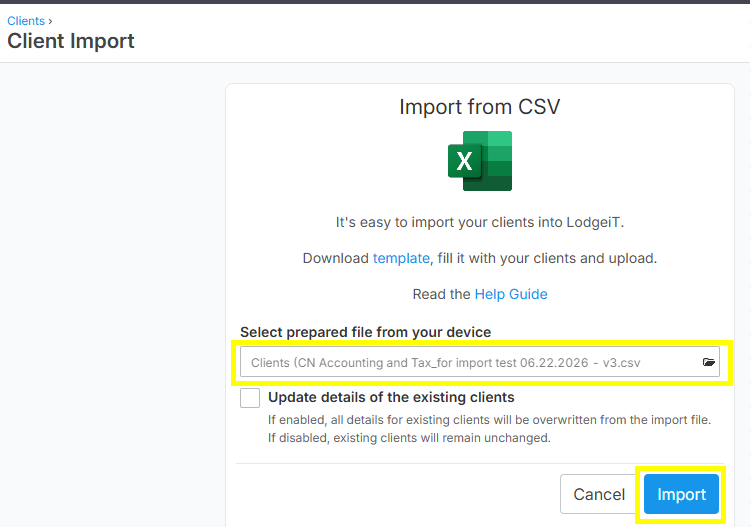
5. Select and search for the client csv file for import. Once the file is selected, then click the "Import" to execute the Client Import.