
Lodgeit controls who can see and work on each client through three settings: a member's access level, the teams the member belongs to, and the access setting of each client.
In this article
Before you start
- Inviting members, changing access levels and managing teams needs the Owner or Admin access level.
- Members can view the Team page but not change it. Outside Collaborators cannot open it.
- To open a client's Team settings and change its access, you need the Add/edit clients and groups permission. An Owner or Admin can turn permissions on from the member's page, under Client permission.
Access levels
Each member has one access level. It decides what the member can manage in your organisation and which clients they can see.
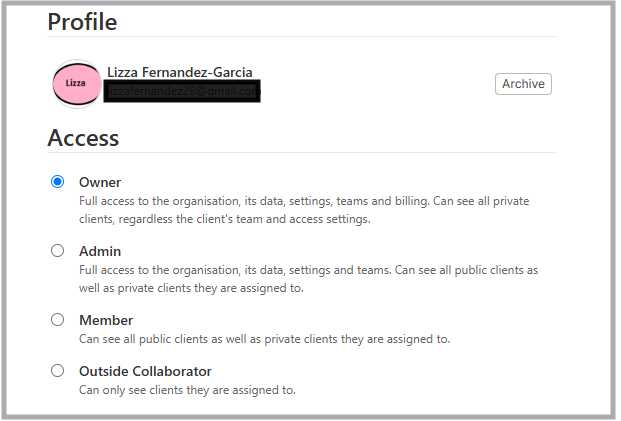
- Owner: full access to the organisation, its data, settings, teams and billing. Can see all clients, including private clients.
- Admin: full access to the organisation, its data, settings and teams. Can see all public clients and the private clients they are assigned to.
- Member: can see all public clients and the private clients they are assigned to.
- Outside Collaborator: can see only the clients they are assigned to.
Check or change a member's access level
An Admin cannot change an Owner's access level.
-
Select the gear wheel, then select Team.
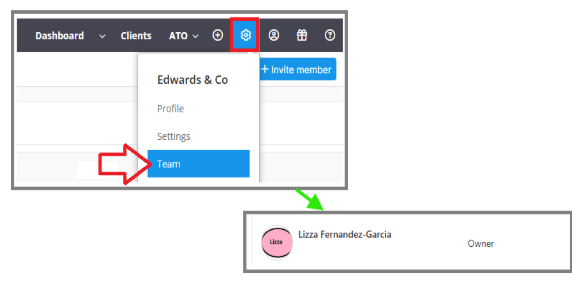
- Select the member's name.
-
Under Access, review the access level. To change it, choose another level, then select Save Member.
Teams
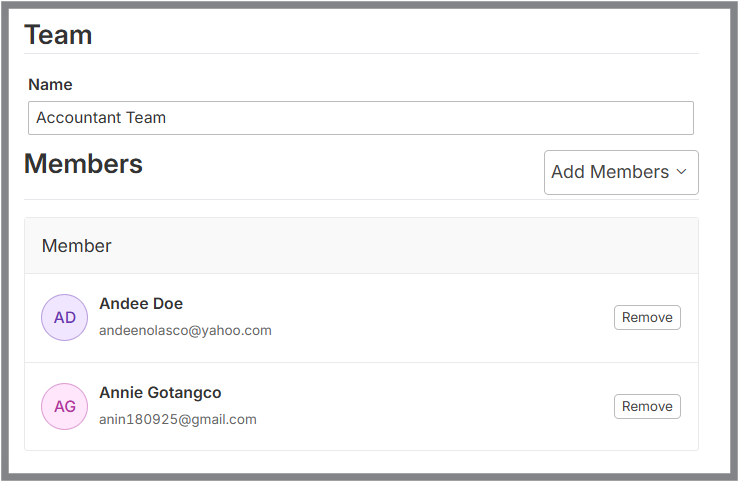
A team is a named group of members, such as Accountant Team. Assign a team to a client to give all its members access in one step. A member can belong to more than one team. A team does not change a member's access level. Creating teams and assigning them to members needs a plan that includes teams.
Create a team
- Select the gear wheel, then select Team.
- Select the Teams tab, then select Add Team.
- Enter a team Name, then select Create.
-
Select Add Members, then choose each member to add. Members who have not accepted their invitation are not listed.
Change or remove a team
- To remove a member from a team, open the team and select Remove next to the member.
- To delete a team, select Remove next to the team on the Teams tab.
- To put one member in a team, open the member's page and select Assign under Teams, choose the team, then select Save Member.
Client access
Each client is either public or private.
- Public: everyone in your firm has access to the client and its work, except Outside Collaborators who are not assigned to the client.
- Private: only Owners and the client's assigned members and teams have access. Other members cannot see the client.
Change a client's access
- Open the client, then select Settings.
- Select Team.
- Under Access, choose Public or Private.
- Select Save.
If you choose Private and you are not an Owner or assigned to the client, Lodgeit warns you to assign yourself to the client. Otherwise you may lose access to it.
Client owner and other assignees
The Team page in client settings has two lists of people who work on the client.
- Client Owner: one member of your firm. A client has one Client Owner.
- Other Assignees: any number of members and teams.
The Client Owner and Other Assignees can all open a private client.
Assign people to a client
To assign members or teams to a client, you also need the Assign/unassign members and teams permission. You set it in the same place, on the member's page under Client permission.
- Open the client, then select Settings, then Team.
- To set the Client Owner, select Assign Client Owner, then choose a member.
-
To add other assignees, select Assign Members, then choose a team or member.
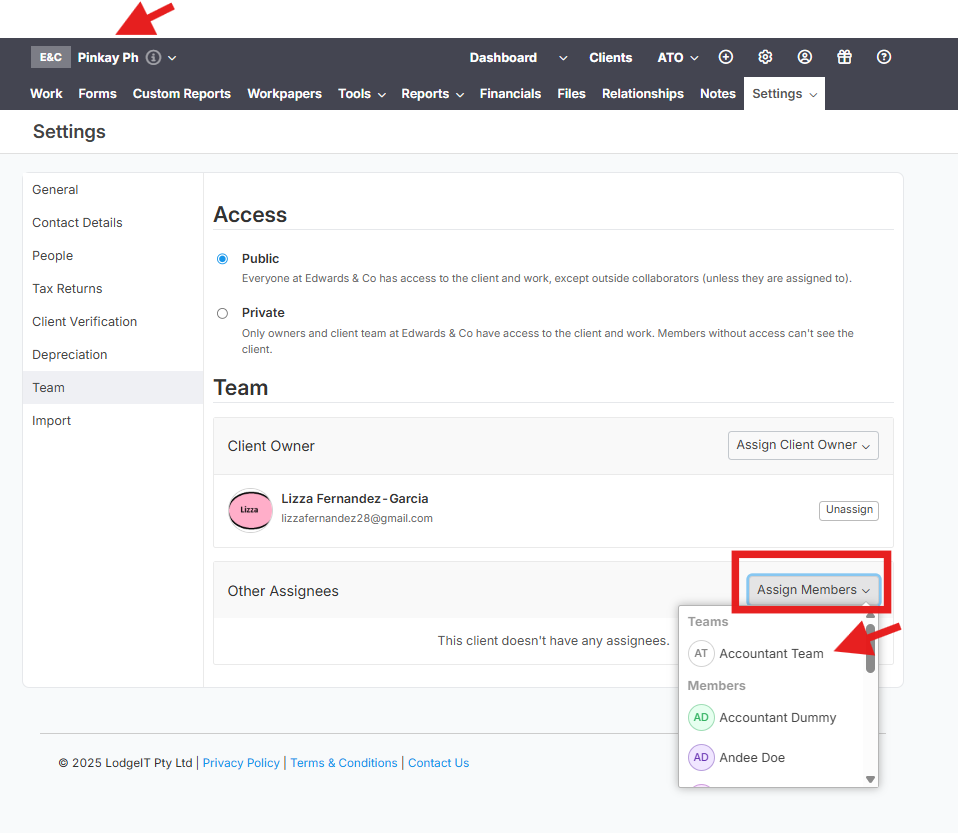
- To remove someone, select Unassign next to their name.
To see who is assigned across all clients, go to Clients and use the Team column. You can also filter the list with Assignee.