
You can update your client codes in Lodgeit either individually or in bulk, depending on how many clients you need to change.
Option A: Change the Client Code Manually
Use this option if you only need to update one or a few clients.
- Search and open the client you want to update.
- Navigate to Settings → General.

- In the Client Code field, enter your desired client code.
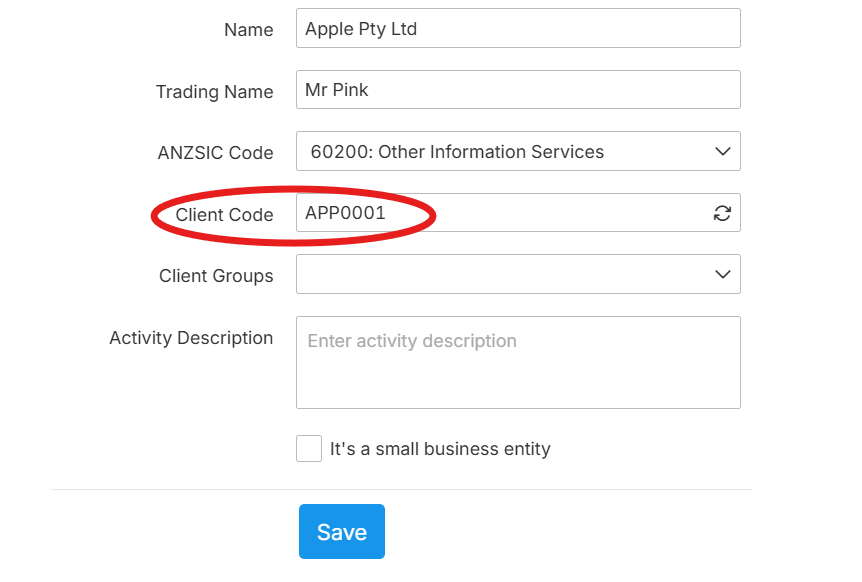
- Click Save.
Option B: Bulk Update Client Codes
Use this option if you need to update multiple client codes at once.
Step 1: Export Your Client List
Export your existing client list from Lodgeit.
Guide: Client Export/Extract (CSV/Excel) and Client Import (CSV only)
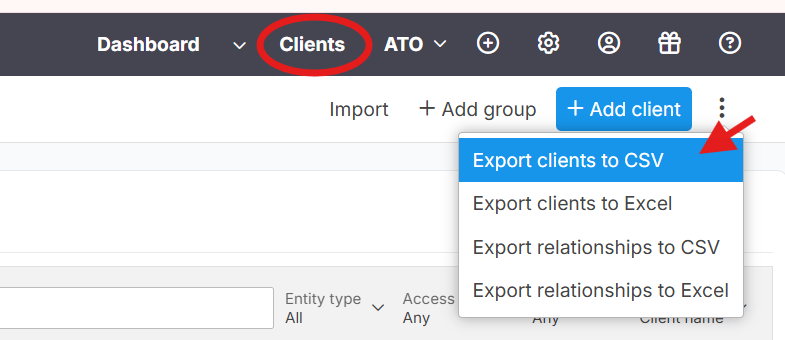
Step 2: Update the Client Codes
- Open the exported file.
- Locate the Code column.
- Replace the existing client codes with your preferred client codes.
- Save the file.
- CSV format is required for importing.
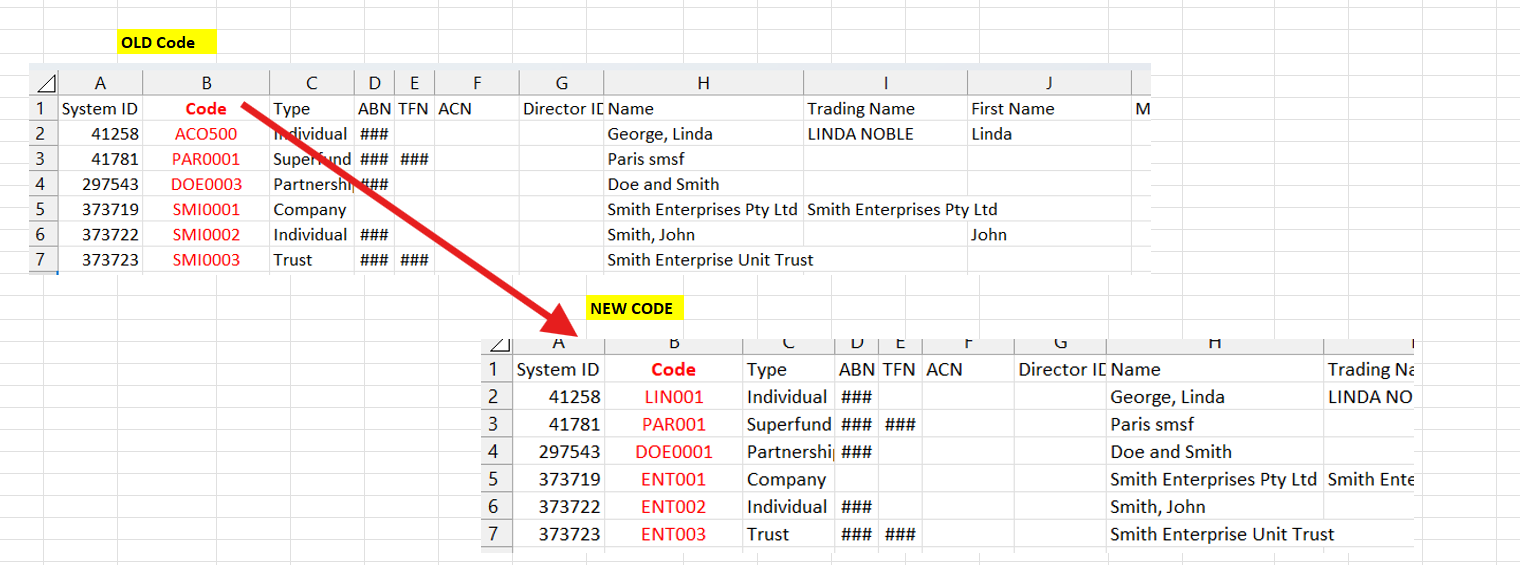
- CSV format is required for importing.
Step 3: Import the Updated File
Import the updated CSV file back into Lodgeit.
Important: During the import process, tick the following option:

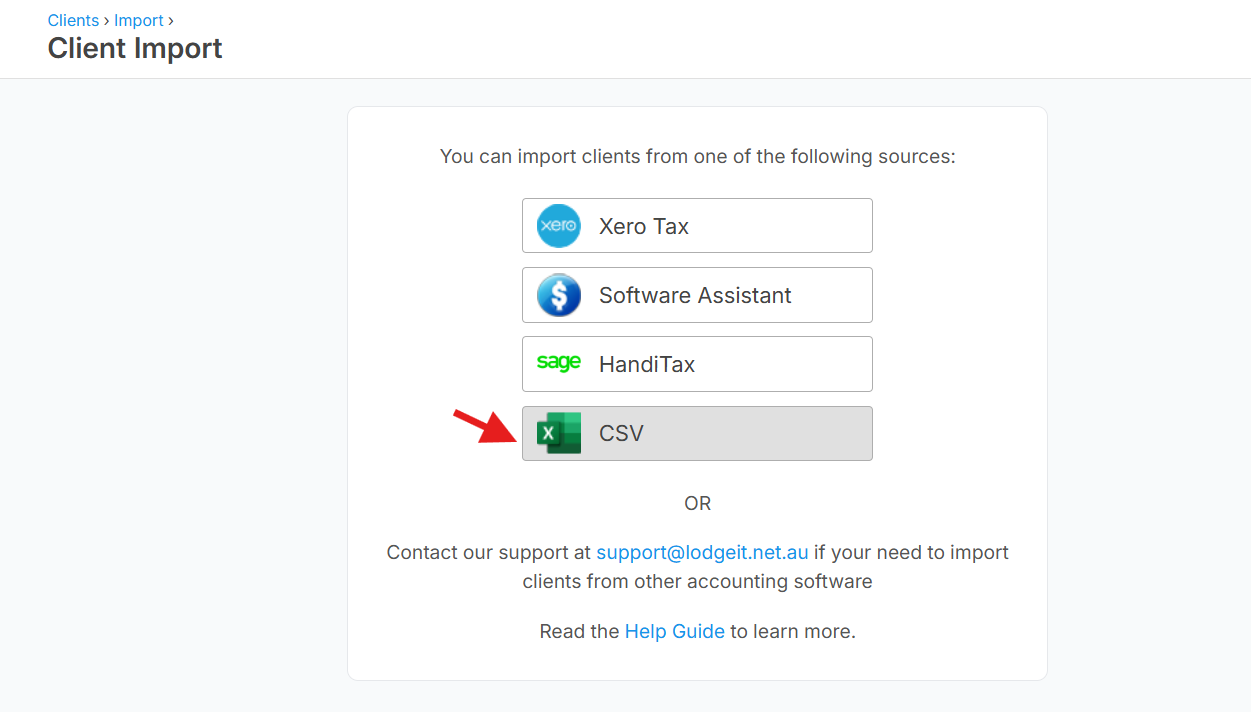
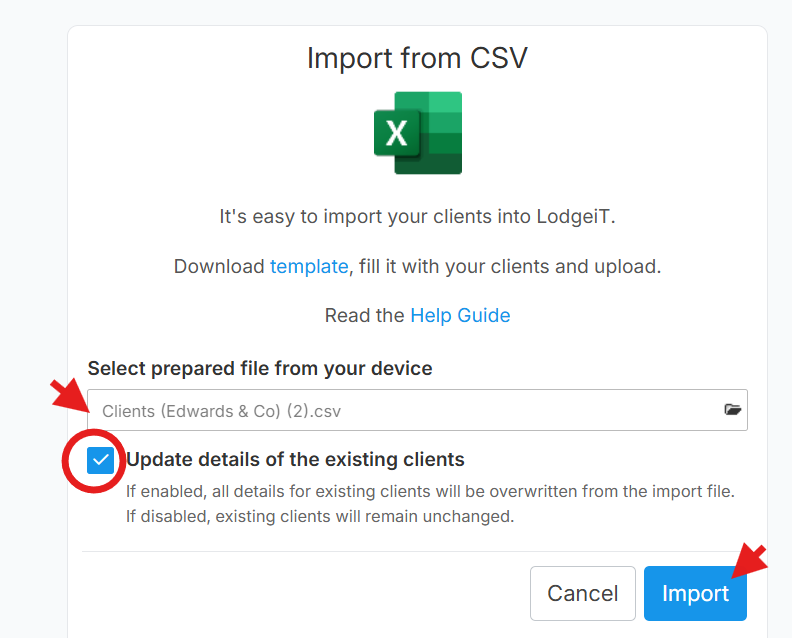
✅ Update details of the existing clients
This ensures Lodgeit updates the existing client records instead of creating new clients.
Note: Only modify the Code column unless you intentionally want to update other client information. Keeping the remaining data unchanged helps prevent unintended updates.