
A BAS Agent account lets a registered BAS agent prepare and lodge activity statements and other BAS forms for its clients in Lodgeit. This guide follows the checklist on the Getting started page, from creating your account to lodging your first client activity statement.
In this article
- Before you start
- Create your account
- Complete your organisation details
- Nominate Lodgeit as your SBR software provider
- Add your colleagues
- Add clients
- Import financials
- Lodge your first activity statement
- Common questions
- Related articles
Before you start
- You have your BAS agent number and your practice's ABN.
- You have a myID linked to the practice in Relationship Authorisation Manager (RAM), so you can sign in to ATO Access Manager. If you don't have one, you can connect to the ATO by phone instead.
- You have an authenticator app on your phone, such as Google Authenticator, or a mobile number for SMS codes.
- To bring your client list across, you have an export from your current software.
Create your account
Not a BAS agent?
Tax agents choose Tax Agent as the practice type and follow the tax agent guide. A business that lodges its own returns chooses Business Entity and follows the business guide.
- Go to go.lodgeit.net.au/signup, enter your name, email and a password, then select Sign up. You can also select Sign up with Intuit or Sign up with Xero.
- Set up two-factor authentication. Scan the QR code with your authenticator app, enter the 6-digit code, then select Confirm. To use SMS instead, select Setup SMS authentication.
- On the Setup new organisation page, select Connect to Xero or Connect to QuickBooks to copy your practice's details from your accounting software, or fill in the form yourself.
- Under Practice Type, select BAS Agent, then enter your number in Tax/BAS Agent Number.
- Choose the Entity Type your practice operates as, such as individual or company, and enter the ABN, TFN and name.
- Select Create.
Lodgeit opens the Getting started page. Select Start next to a step to open the screen for it. To come back later, select the help icon (?) in the top bar, then Getting Started.

Complete your organisation details
These are your practice's details. Lodgeit uses them on the forms you lodge for clients.
- On the Getting started page, select Start next to Complete your organisation details.
- Enter the Primary email, Primary phone, business address and postal address.
- In Primary Contact/Signatory, choose the person who signs forms for the practice. If they aren't in the list, add them.
- Check that the name and ABN match the ATO's records, then save.
To change these details later, select the gear icon, then Profile.

For every field on these settings pages, see Organisation details.
Nominate Lodgeit as your SBR software provider
Lodgeit can't prefill, validate or lodge until the ATO knows it's your software provider. You nominate it once, for your practice's ABN, in ATO Access Manager. You don't need to repeat this for each client.
- On the Getting started page, select Start next to Nominate LodgeiT as your SBR software provider. Lodgeit opens the ATO Software ID page.
- Copy Your software ID.
- Select the ATO Access Manager link, sign in with your myID and choose your practice.
- Open My hosted software services and select Notify the ATO of your hosted service.
- Search for Lodge iT (with a space) or Lodgeit's ABN, 98 146 732 569, and select the ABN in the results.
- Paste your software ID, select Next, then select Save.
- Back in Lodgeit, select Test Software ID. When the nomination has worked, Lodgeit shows Successfully connected to ATO.
For screenshots of each Access Manager screen, see Connect Lodgeit to ATO.
Add your colleagues
Every Lodgeit plan includes unlimited users. Each colleague signs in with their own account, and you choose what they can do.
- On the Getting started page, select Start next to Add your colleagues. Lodgeit opens the Team page.
- Select Invite member.

- Enter their Email and tick the permissions they need, such as Sign forms or Lodge forms.
- Select Invite Member. Lodgeit emails them an invitation.
To group colleagues into teams and limit who sees which clients, see Teams, access levels and client access. It includes a video.
Add clients
You can add clients one at a time or import your whole client list.
Add one client
- On the Getting started page, select Start next to Add clients. Lodgeit opens the Clients page.
- Select Add client.
- To copy the client's details, select Connect to Xero or Connect to QuickBooks. To copy them from the ATO, select Import from ATO, enter the client's ABN or TFN, then select Import client.
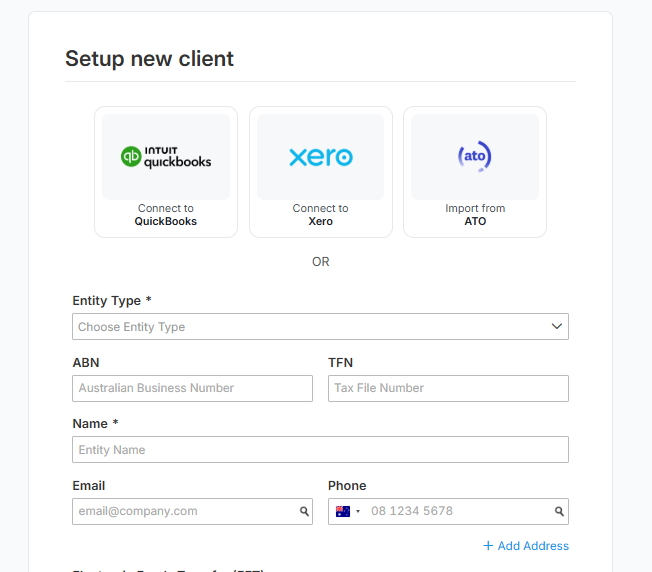
- Otherwise, enter the details yourself, then select Create.
Import your client list
- On the Clients page, select Import, then New import.
- Choose where the list comes from: Xero Tax, Software Assistant, HandiTax or CSV.
- Follow the steps for that source.
For each import source, see Direct client import. To import from other software, contact support.
Import financials
You can skip this step. It opens the Financials page, which is used for tax returns. Activity statements take a client's figures from QuickBooks or Xero through Import on the form itself, as described in the next section.
Lodge your first activity statement
You can set up Lodgeit and prepare forms without paying. To lodge, you need an annual plan: select the gear icon, then Billing, choose a plan and select Subscribe. E-signature credits are bought separately on the same page once the plan is active. See Package subscription for BAS agents.
Choose a plan that covers the whole year
Unused lodgments and e-signature credits don't carry over when you change plan or when the subscription year ends. Check how many forms you expect to lodge before you subscribe.
- On the Clients page, select the client's name.
- Select Add form, then choose the activity statement. Lodgeit retrieves the client's unlodged activity statements from the ATO.

- Choose the period, then select Create & Prefill.
- To bring in the amounts from the client's QuickBooks or Xero, open the menu (⋮) at the top of the form and select Import. If the client isn't connected yet, select Connect to QuickBooks or Connect to Xero and sign in. For QuickBooks, choose Tax Summary Report or BAS Report, then select Import.
- Check the amounts and fill in the rest, then select Validate and fix any errors it lists.
- When there are no errors left, select Complete.
- Get the client's declaration. Select Request e-signature to send the form to the client to sign online, or Out to sign if they will sign a printed copy.
- When the client has signed, select Sign to sign the agent's declaration.
- Select Lodge.
For the difference between the two QuickBooks reports, see Import BAS Values from QuickBooks. For prefilling, automatic collection of activity statements and amendments, see Preparation of activity statement.
Common questions
Which forms can a BAS agent lodge?
Activity statements, TFN declarations, PAYG payment summaries and the taxable payments annual report (TPAR).
Can I lodge income tax returns?
Not for clients. A BAS agent account can't lodge income tax returns. To lodge a company, trust or partnership return for your own business, create a separate organisation with the practice type Business Entity and move to it with Switch organisation. That organisation pays for each return it lodges. See BAS agent or bookkeeper to lodge a tax form.
Can I try Lodgeit before I pay?
Yes. You can set up your practice, add clients and prepare forms without a plan or payment details. You need a plan when you're ready to lodge.
How much does Lodgeit cost for a BAS agent?
Plans are annual and differ in how many lodgments they include. Every plan includes unlimited users. For current prices, see pricing for bookkeepers.
Test Software ID doesn't connect
Check that you completed the Access Manager steps for your practice and pasted the software ID shown in Lodgeit. Then check that the name and ABN in your organisation details match the ATO's records.
If it still fails, see the troubleshooting in Connect Lodgeit to ATO or contact support.